QR codes and sharing
Design and download your table QR code in your brand colours, share your menu with trackable links and give guests your Wi-Fi.
Your QR code always opens your menu and its link never changes, so printed codes keep working.
Design your QR code
-
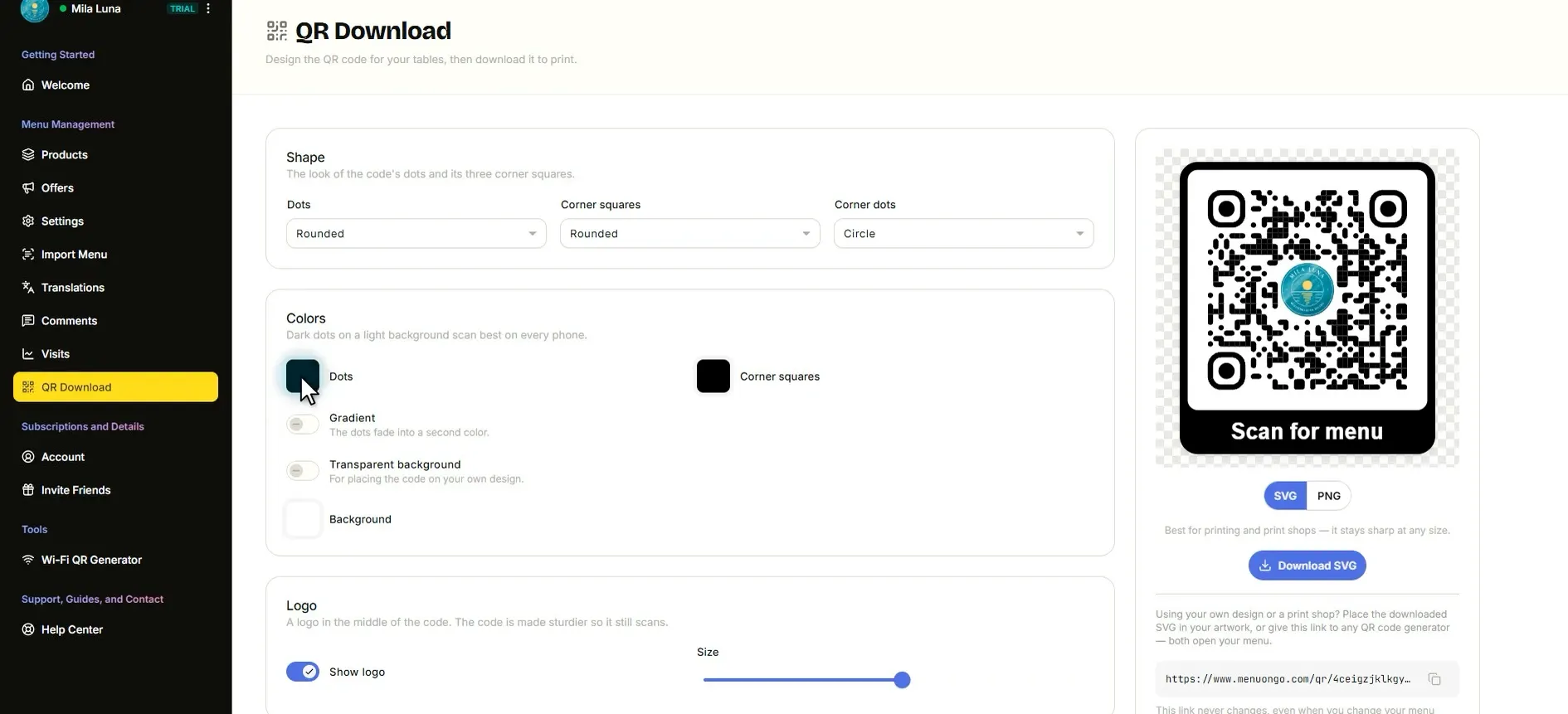
Open QR Download from the menu on the left. This is your table QR code.
-
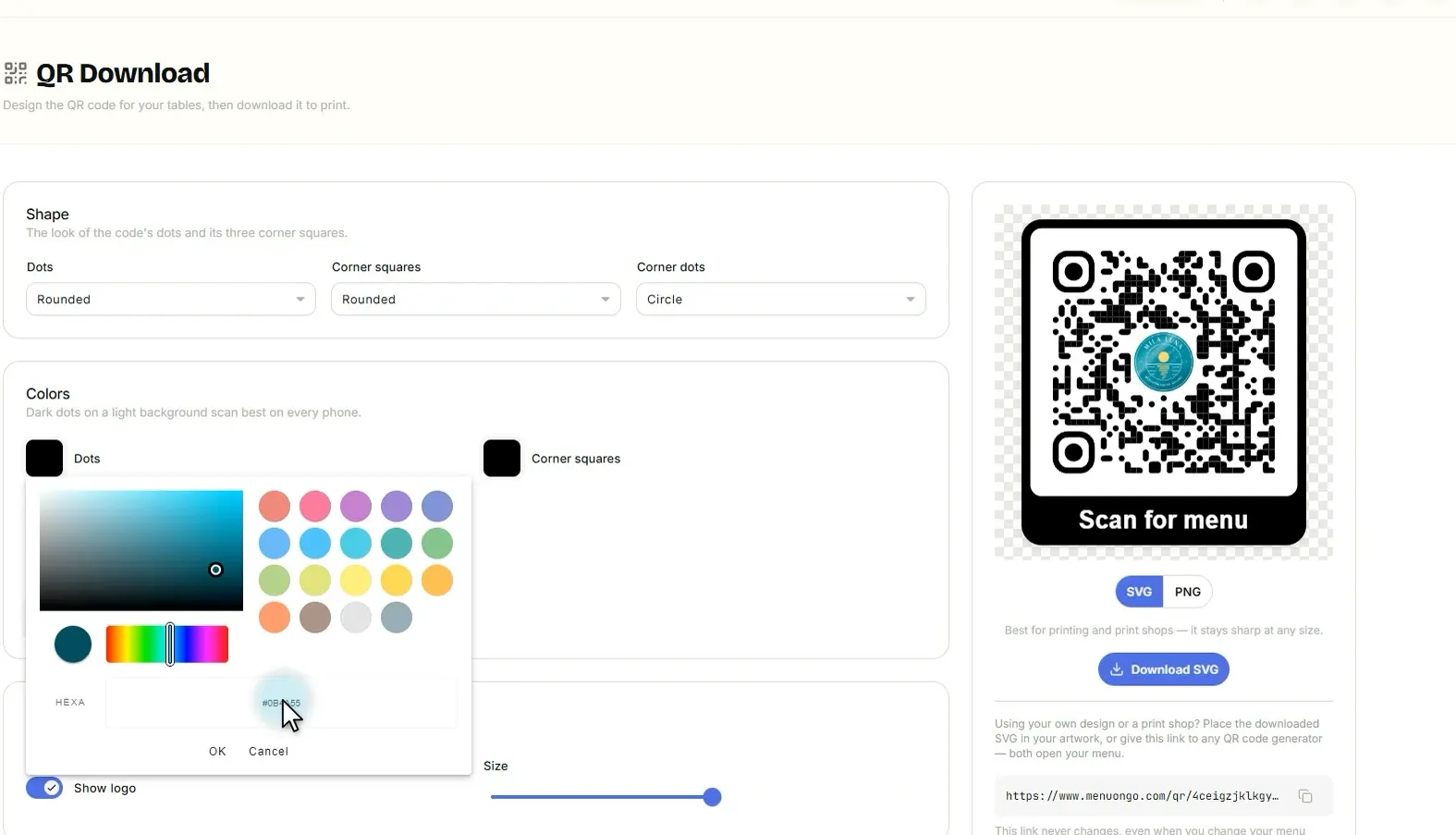
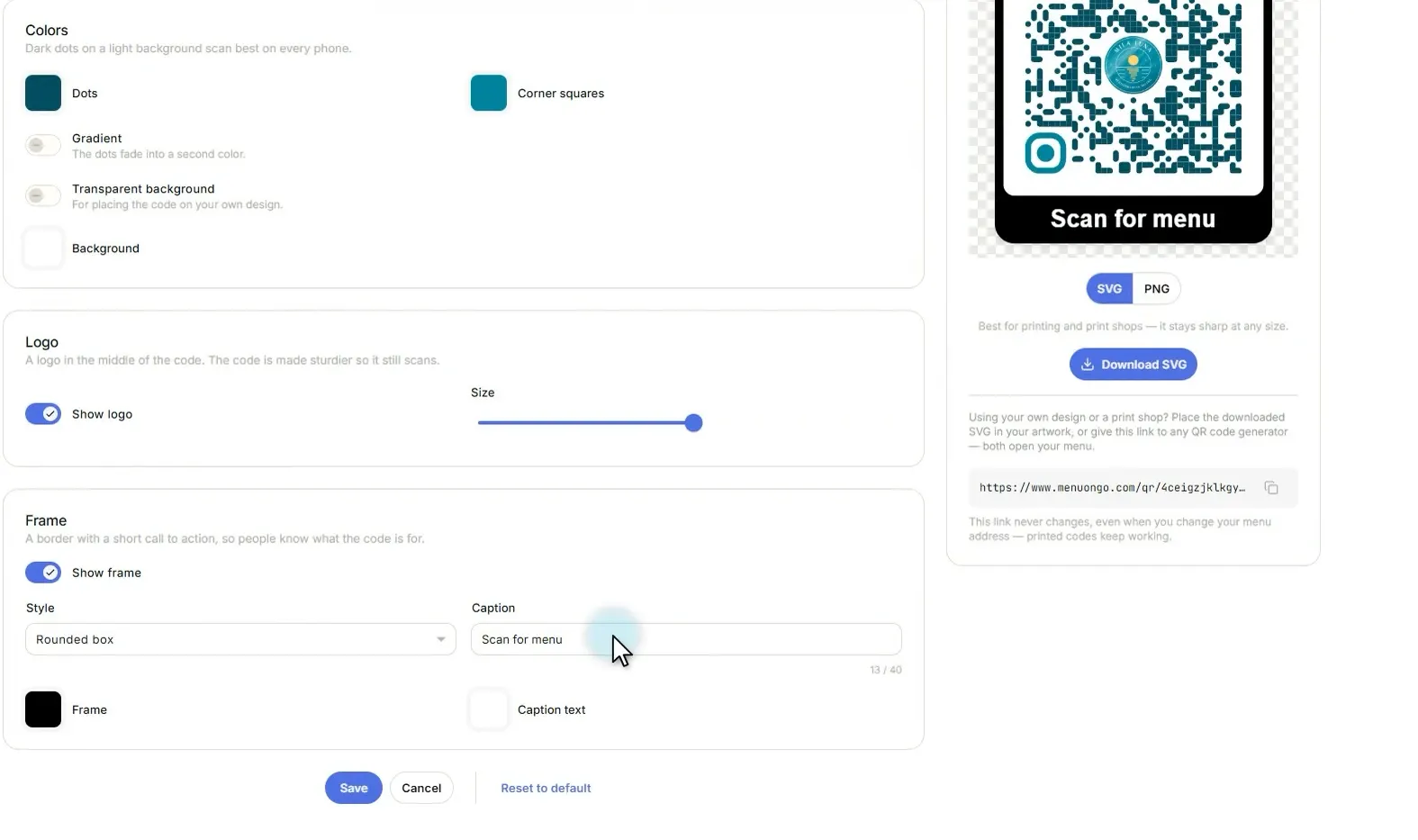
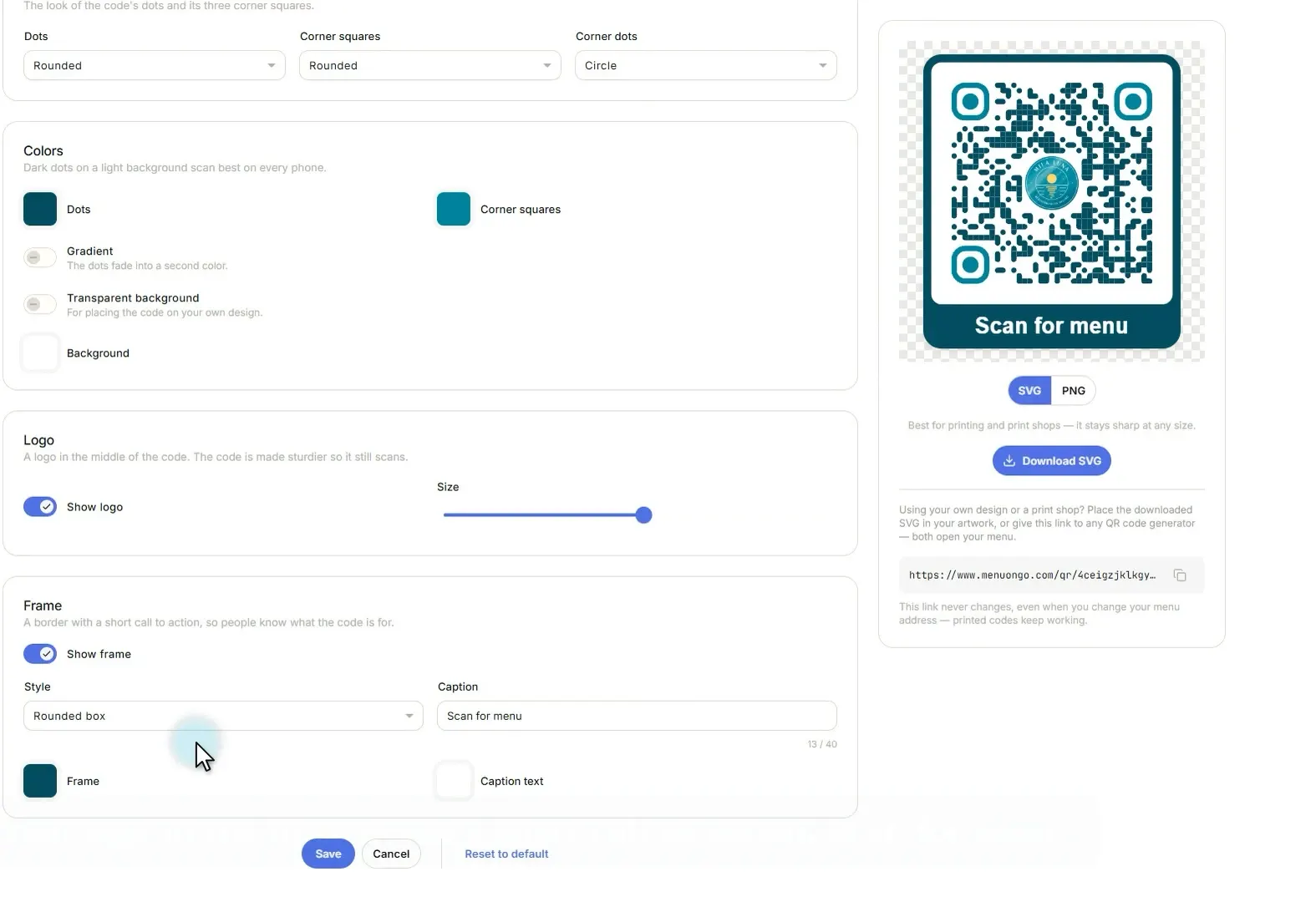
Under Colors, click Dots and type your brand colour. The code changes colour straight away.
-
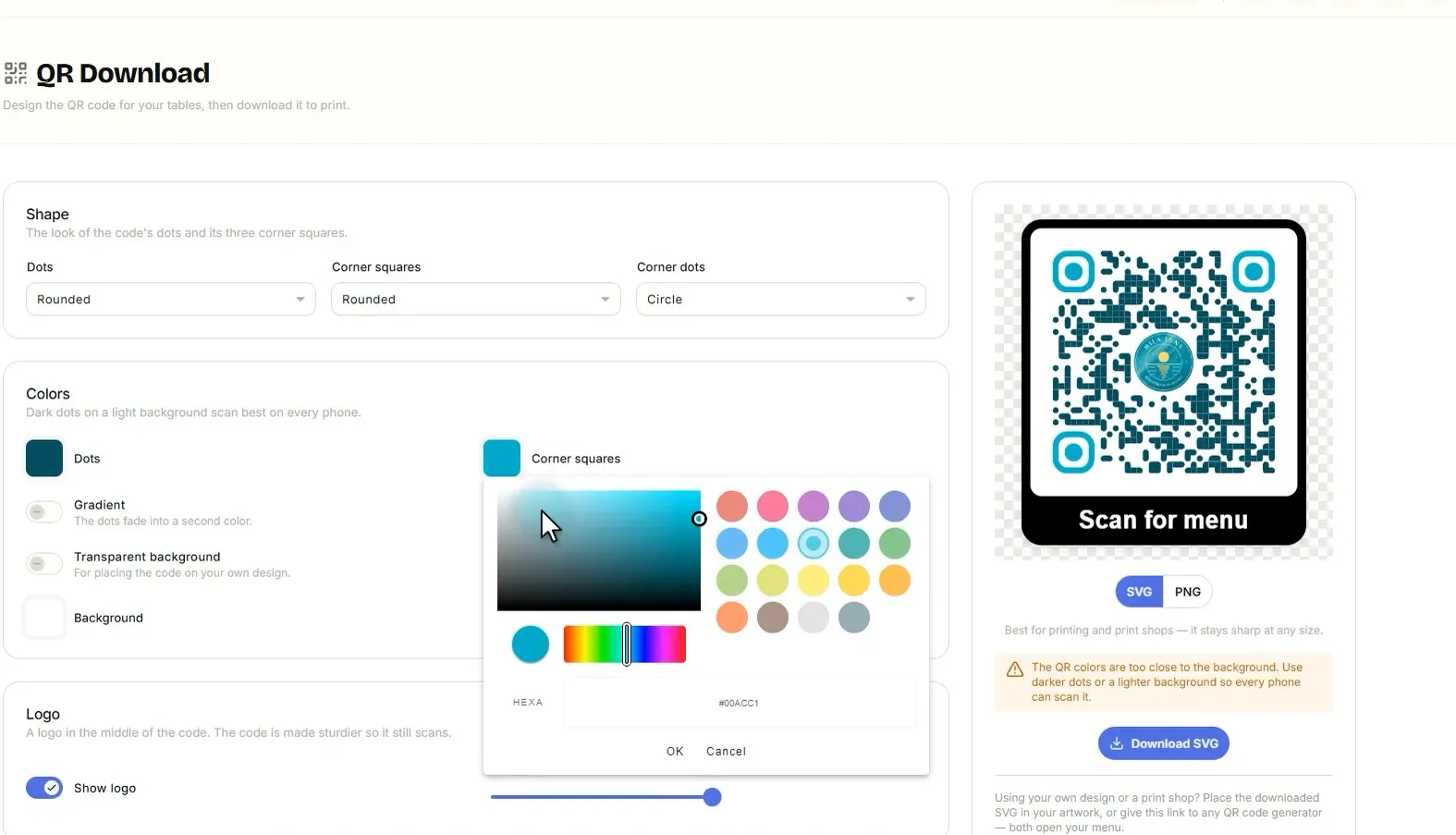
Pick a colour for the Corner squares too. If a colour is too light, MenuOnGo warns you when phones may struggle to scan it; choose a deeper shade until the warning is gone.
-
Further down, you can colour the Frame to match.
-
Add your logo in the middle and a short call to action, like “Scan for menu”.
-
Click Save.
-
Download it as SVG for print shops, or PNG for everyday use.
Share your menu
-
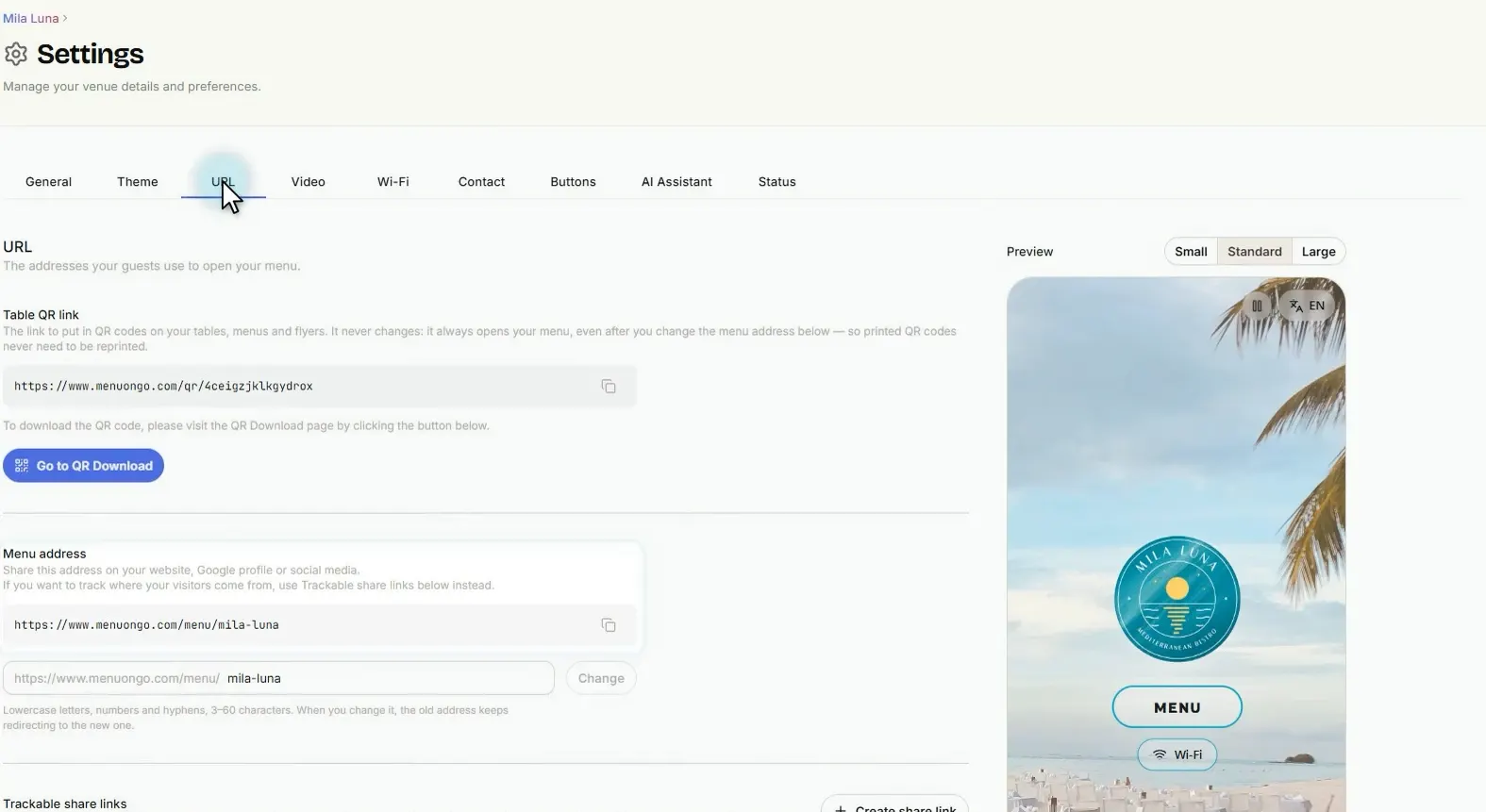
Open Settings and go to the URL tab. This is your menu address, ready for your website or Google profile.
-
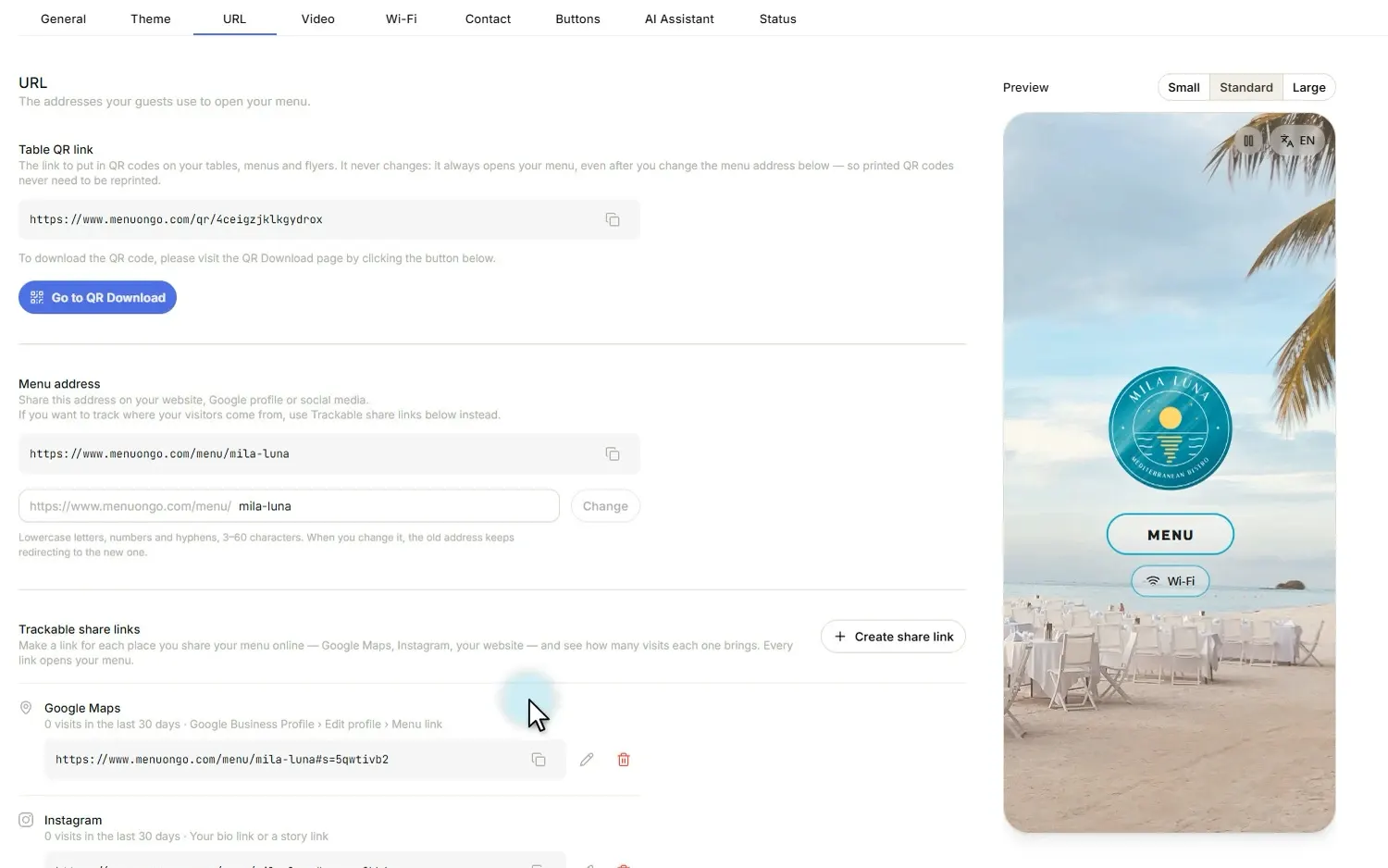
For each place you share it, create a trackable link, for example Google Maps and Instagram. Each link counts its own visits, so you see what brings guests in.
-
Copy the link and paste it, for example into your Instagram bio.
Give guests your Wi-Fi
-
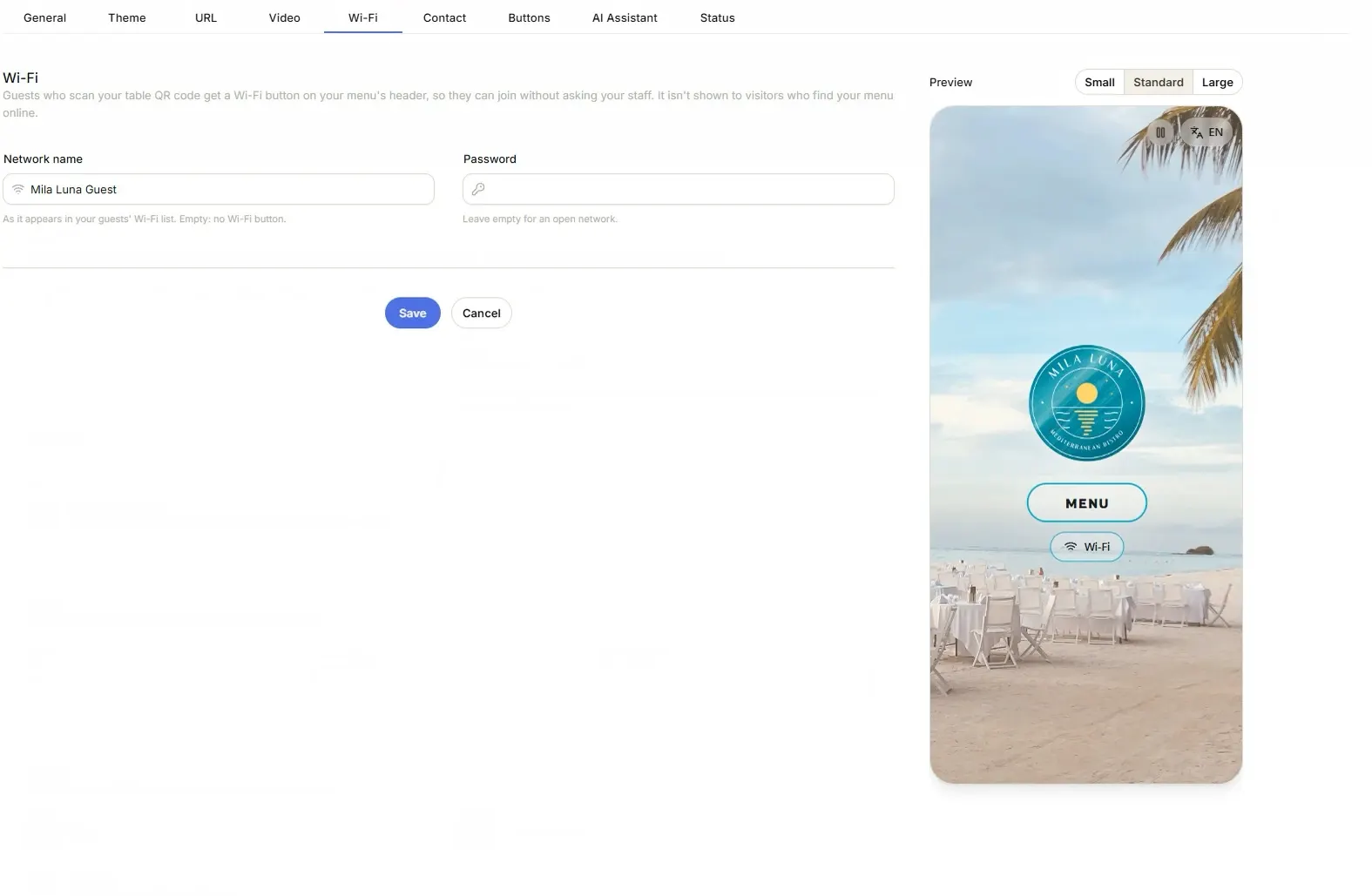
In Settings, open the Wi-Fi tab.
-
Enter the name of your guest network. Type the password if it has one, or leave it empty, then click Save. Guests see a Wi-Fi button on your menu.
-
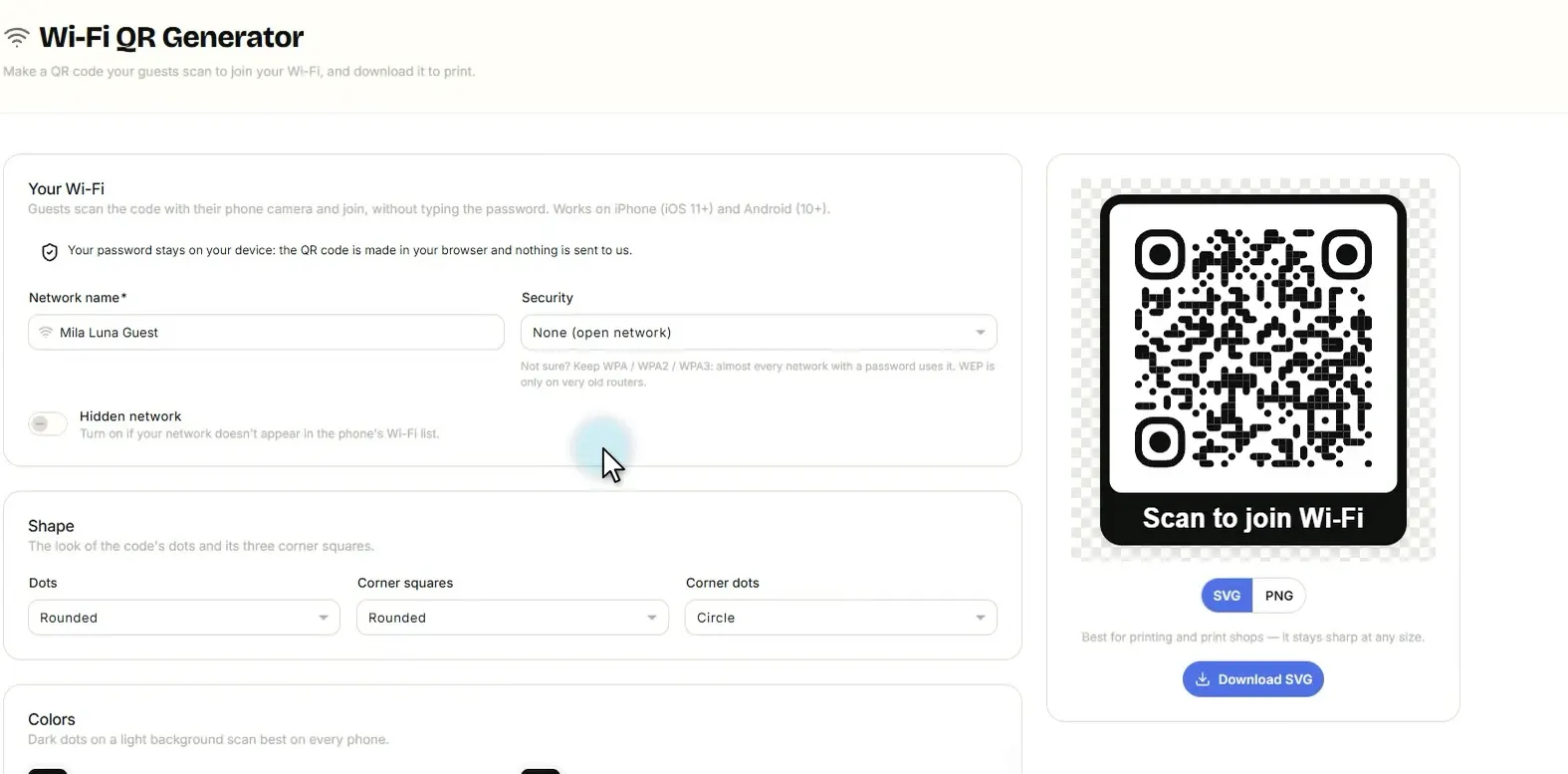
Want a separate QR code for the Wi-Fi? Open Wi-Fi QR Generator, type the network name and choose the security type.
-
Download the Wi-Fi QR code and put it on the tables, right next to your menu QR code. Guests scan it and they are online.