Make every dish shine
Give a dish a photo, an AI-written description, badges, nutrition facts, allergens, sizes and extras.
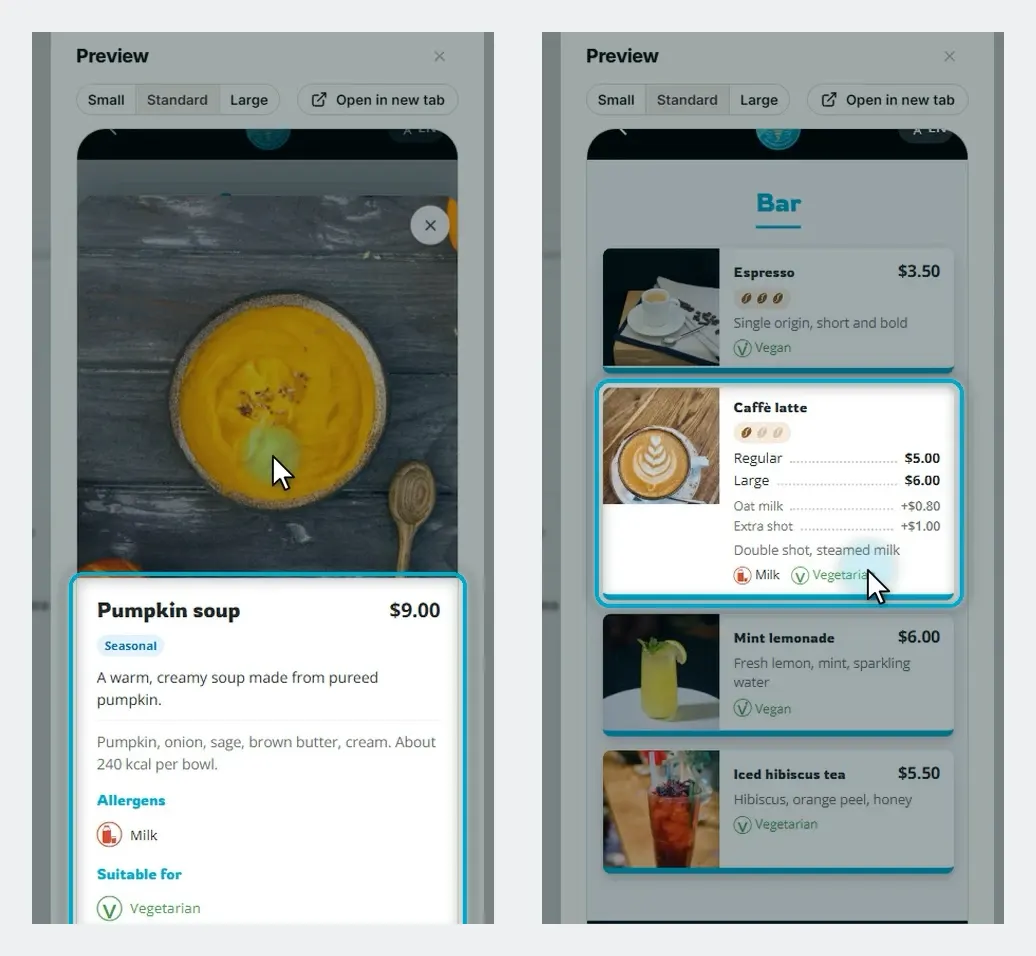
Photo, description, badges and diet info all sit on one card, and guests tap a dish for the details.
Add a new dish
-
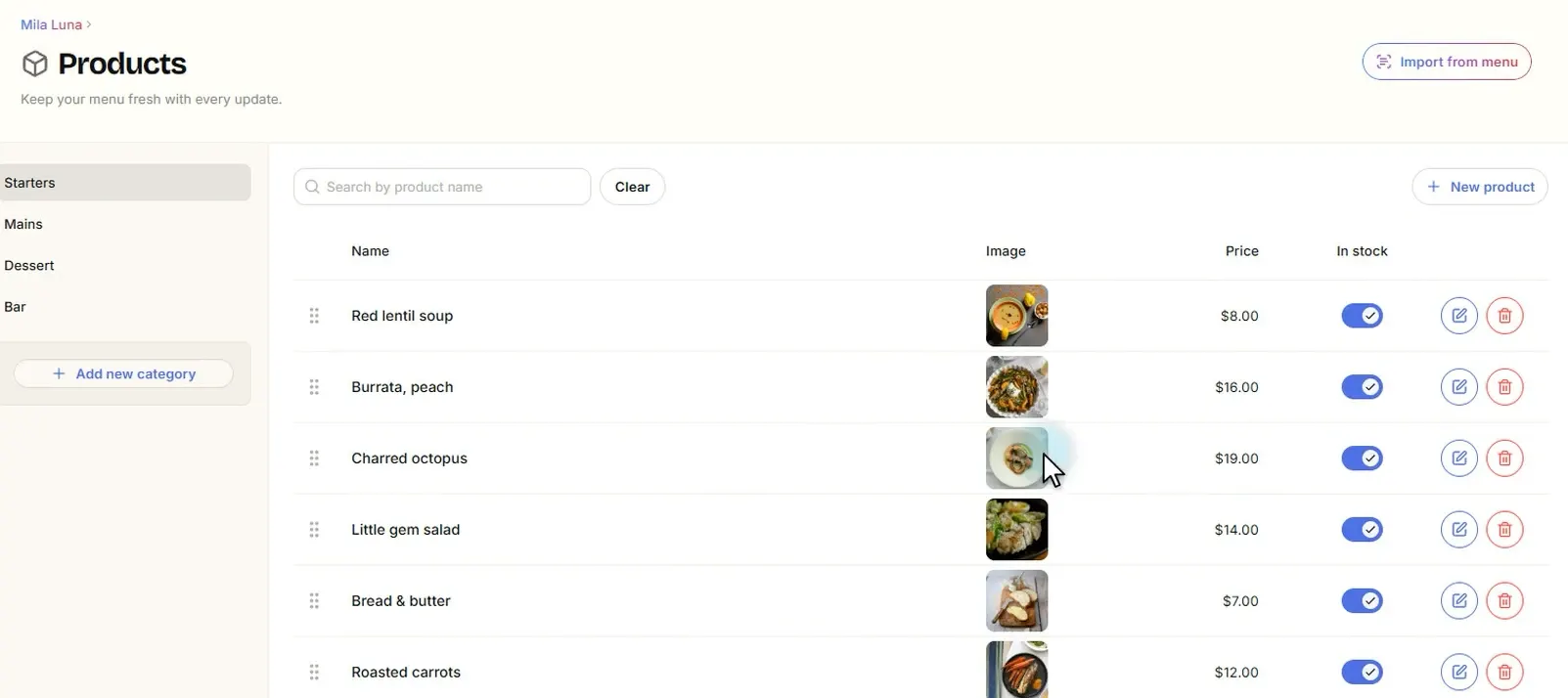
On the Products page, in the category you want (for example Starters), click New product.
-
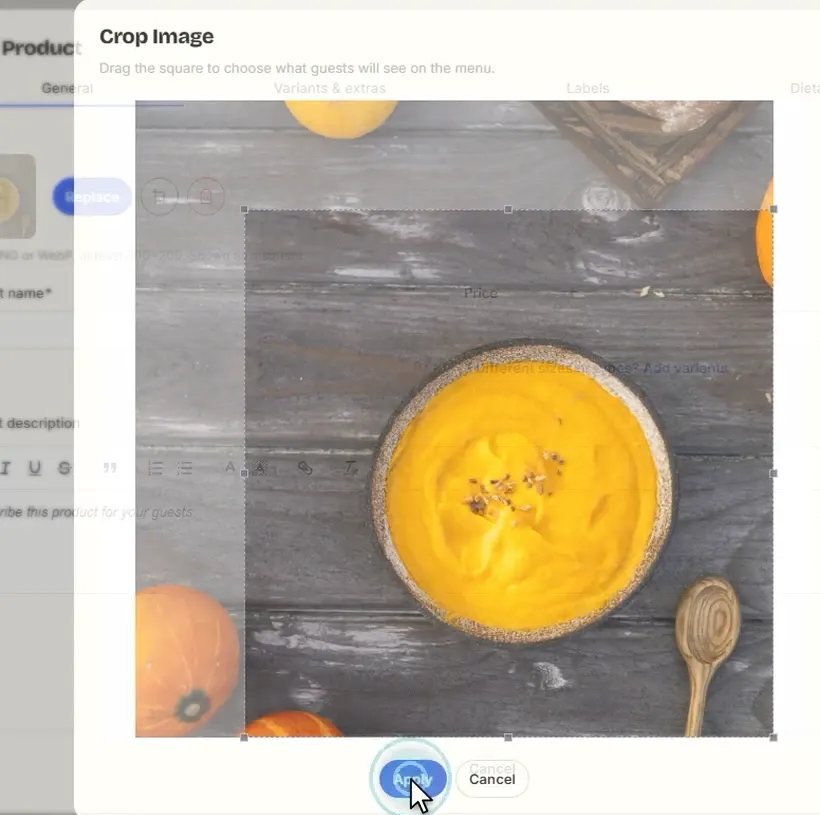
Upload a photo of the dish. Drag a corner to choose what guests will see, then click Apply.
-
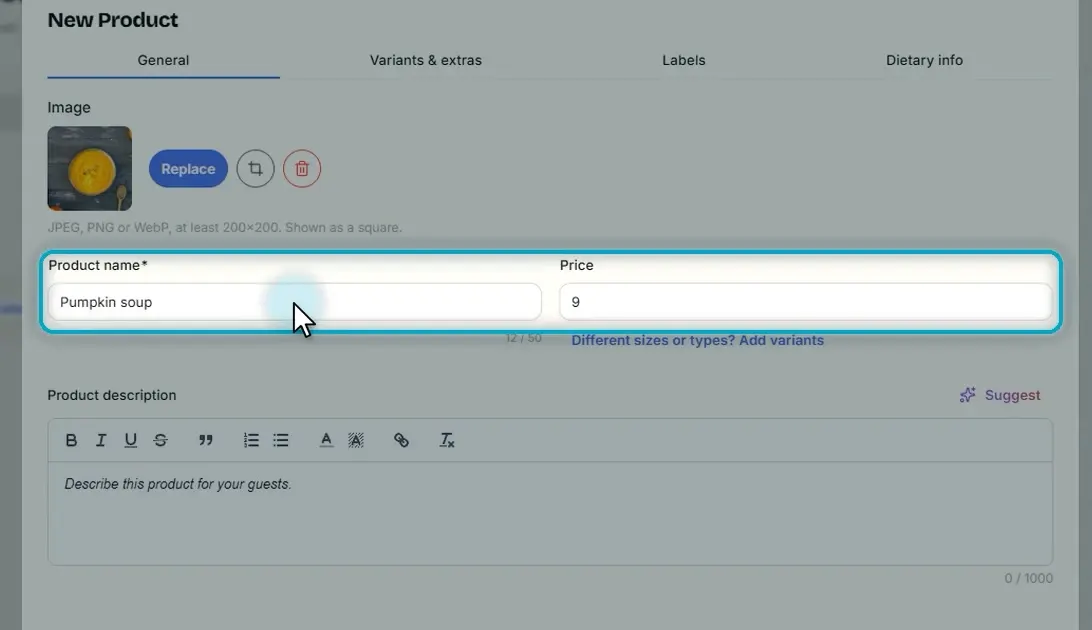
Type the name and the price.
-
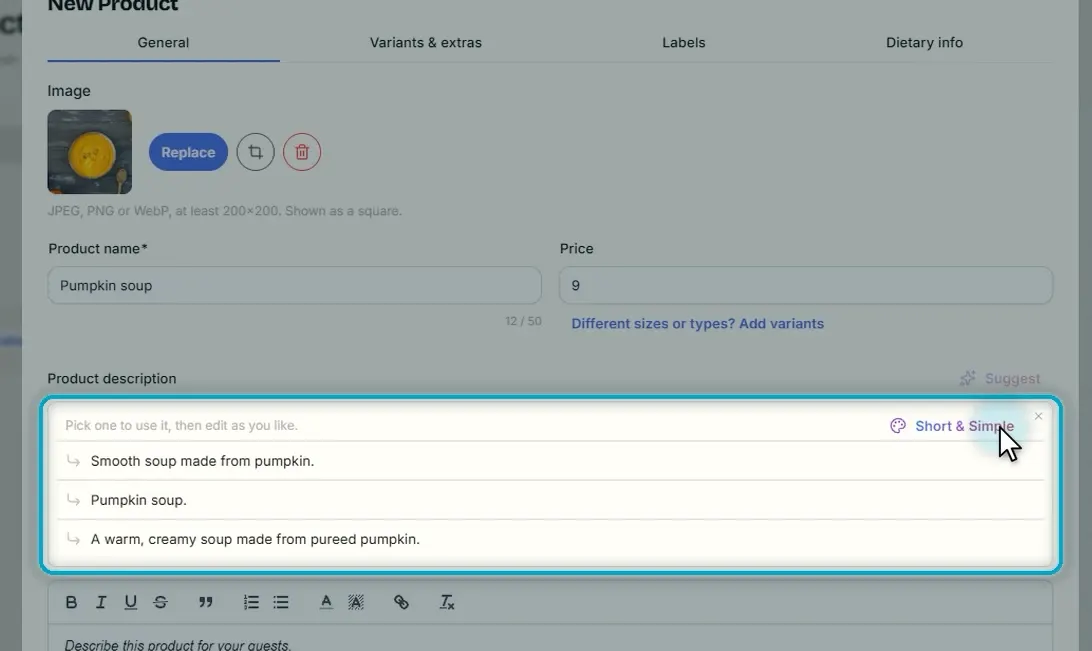
No time to write a description? Click Suggest. AI offers a few descriptions; pick the one you like. It lands in the editor, ready to change if you want.
Labels and dietary info
-
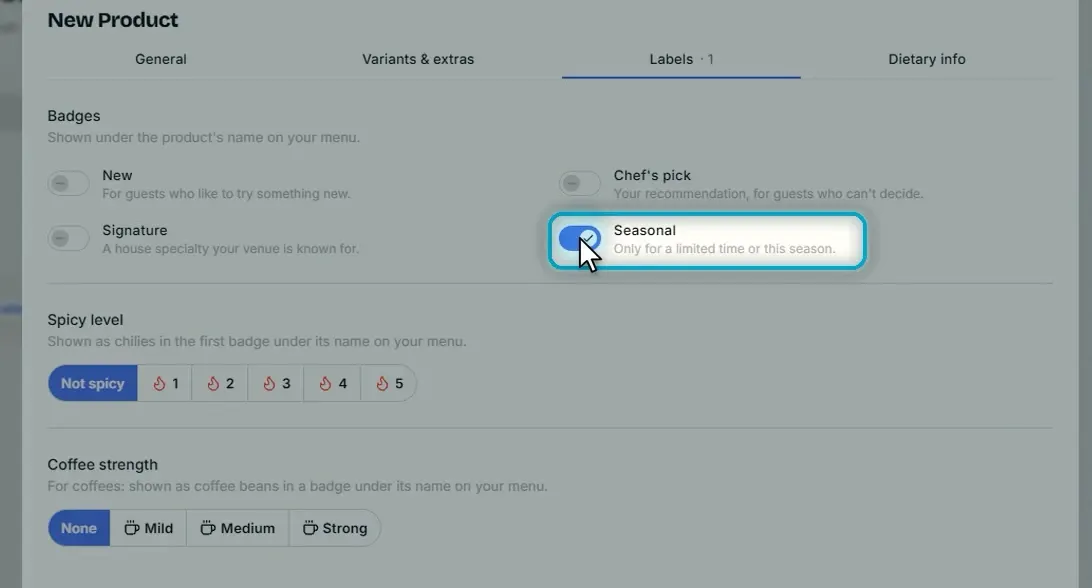
Open the Labels tab. Badges help a dish stand out: if it’s pumpkin season, switch on Seasonal. Spicy level and coffee strength are on this tab too.
-
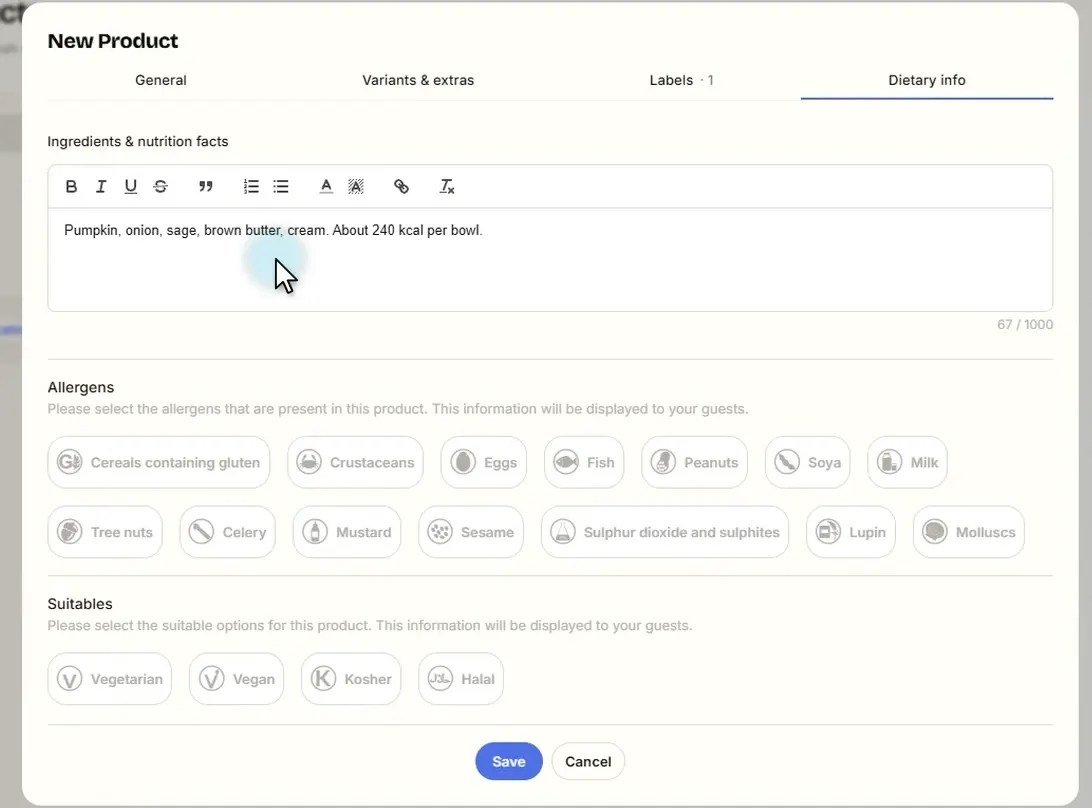
Open Dietary info and add the ingredients and nutrition facts, like calories.
-
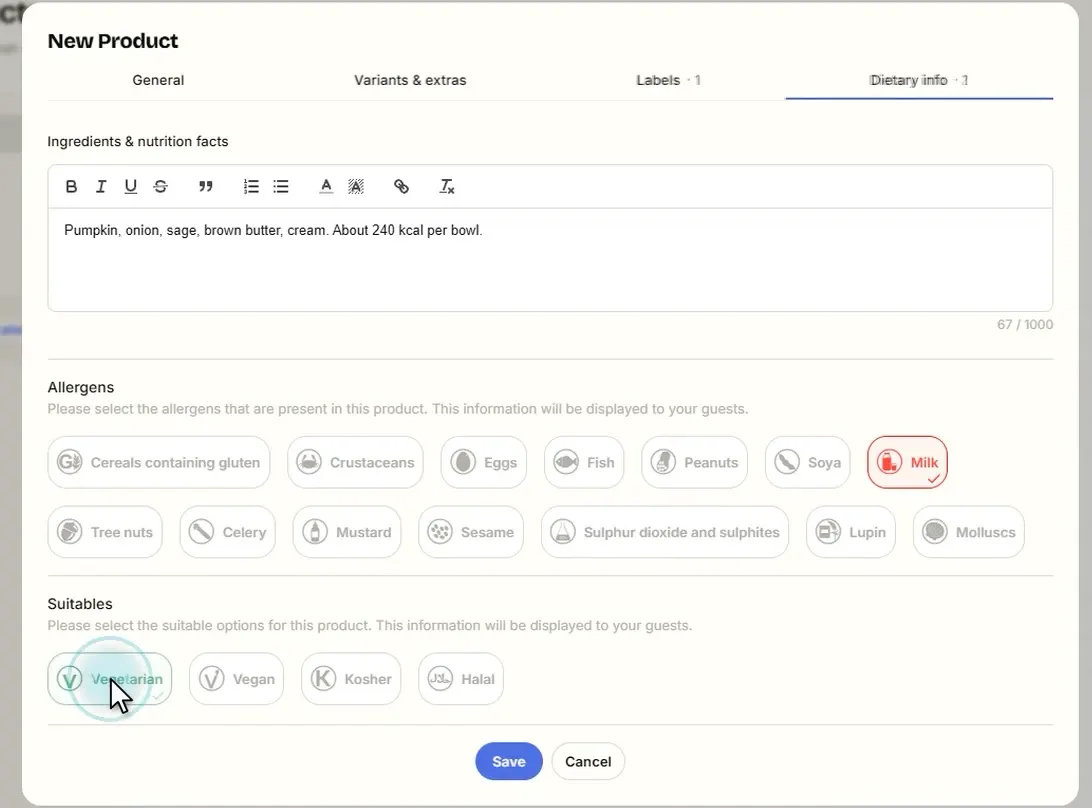
Tap the allergens the dish contains and the diets it suits.
-
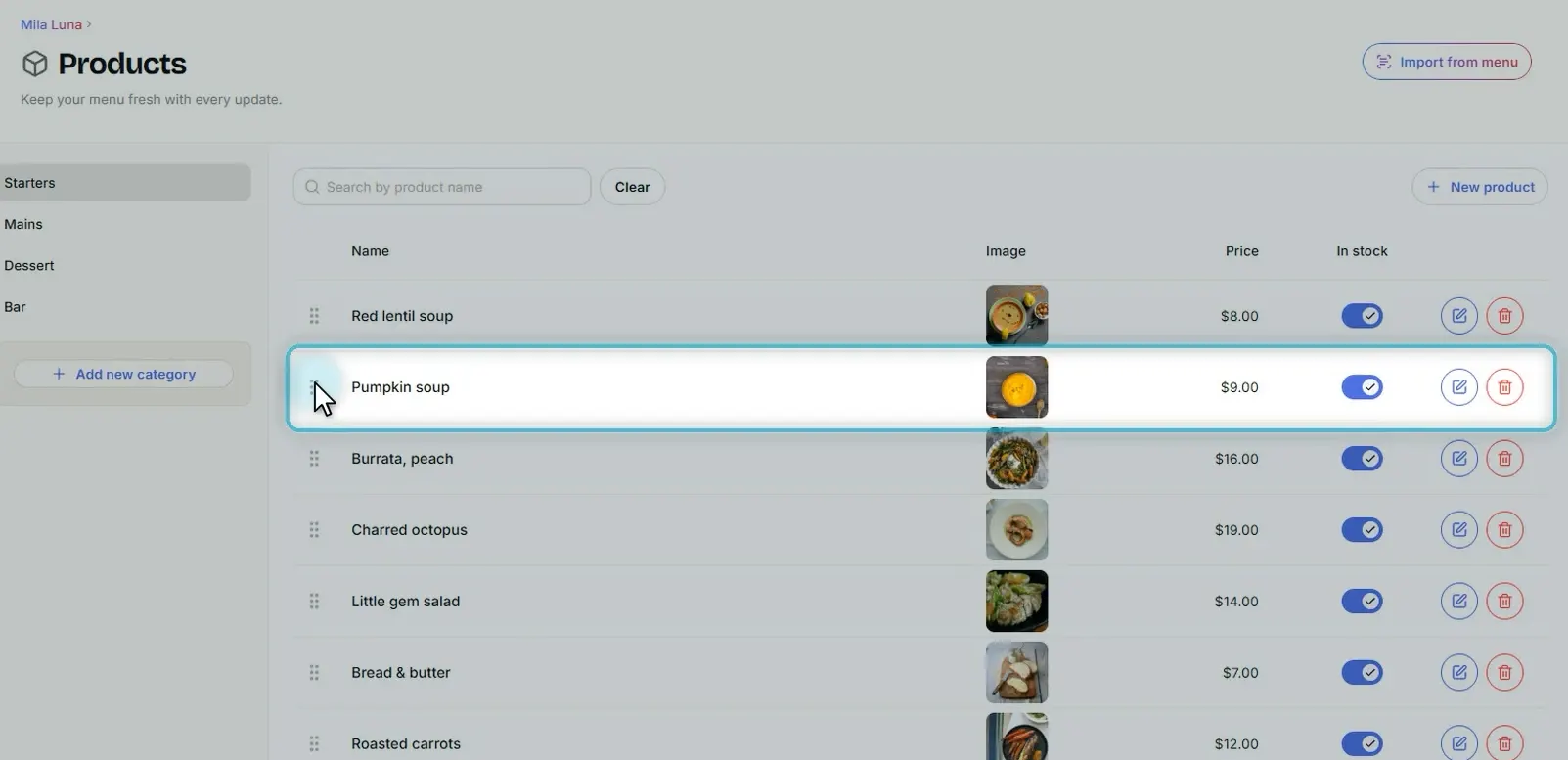
Click Save. The new dish goes to the end of the list; drag it to where you want it on the menu.
Sizes and extras
-
For a drink with sizes, open its category (for example Bar) and edit the product (for example Caffè latte).
-
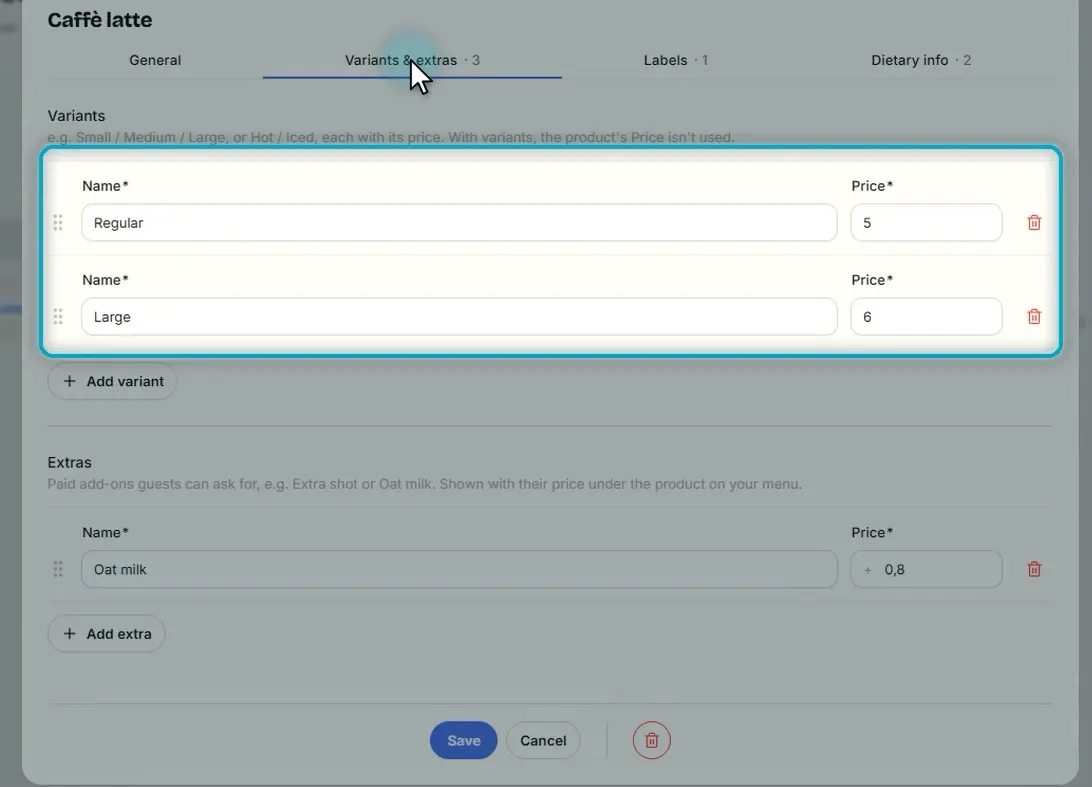
Open Variants & extras. Variants are sizes or types, each with its own price; the product’s price comes from its variants.
-
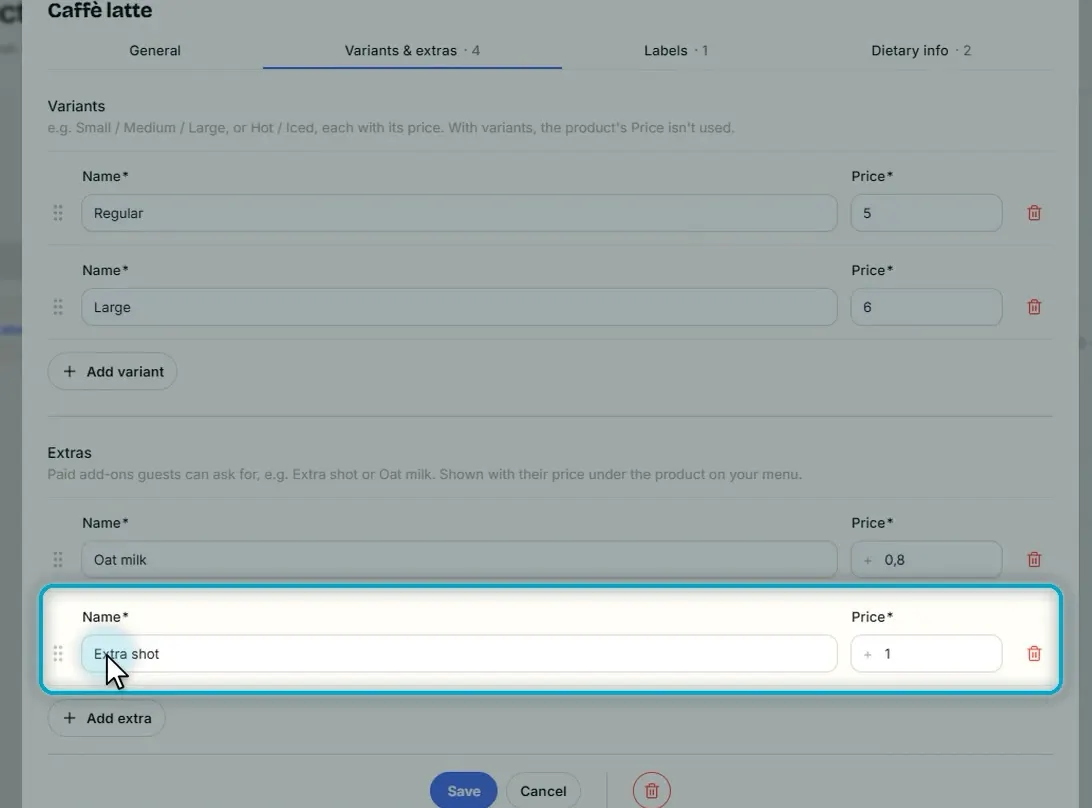
Extras are paid add-ons, like oat milk. Click Add extra, then give it a name and a price.
-
Click Save.
What guests see
When guests tap a dish, they see its ingredients, calories, allergens and diets at a glance; sizes and extras are listed with their prices. Clear details help guests choose with confidence.