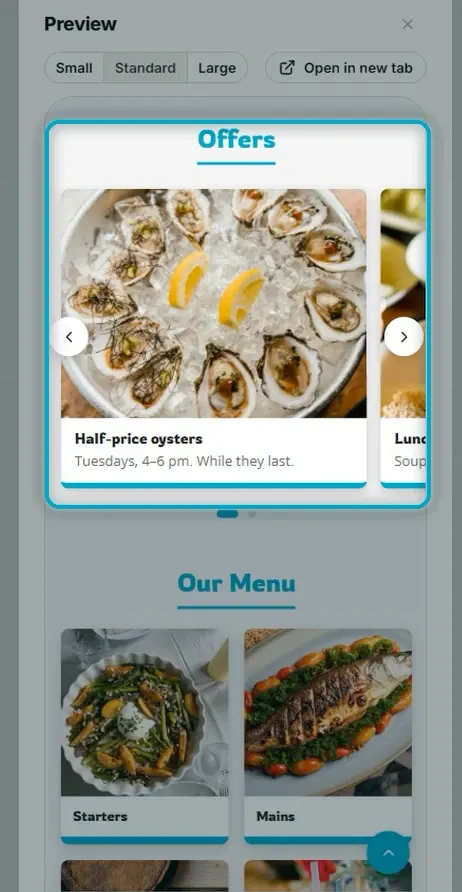
During service
Mark a dish as out of stock, change a price on the spot and publish a special offer for tonight.
On a busy night, everything you change here goes live right away. Nothing to reprint.
Mark a dish as out of stock
-
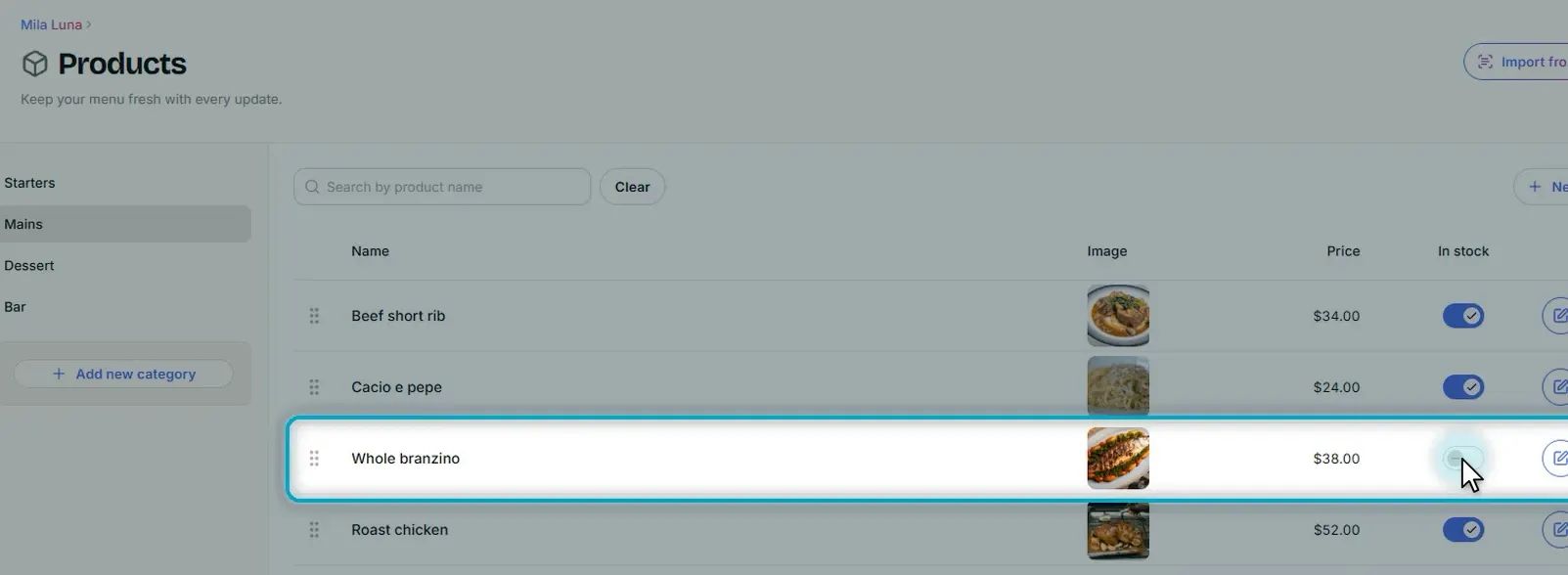
On the Products page, switch off In stock for the dish that ran out.
-
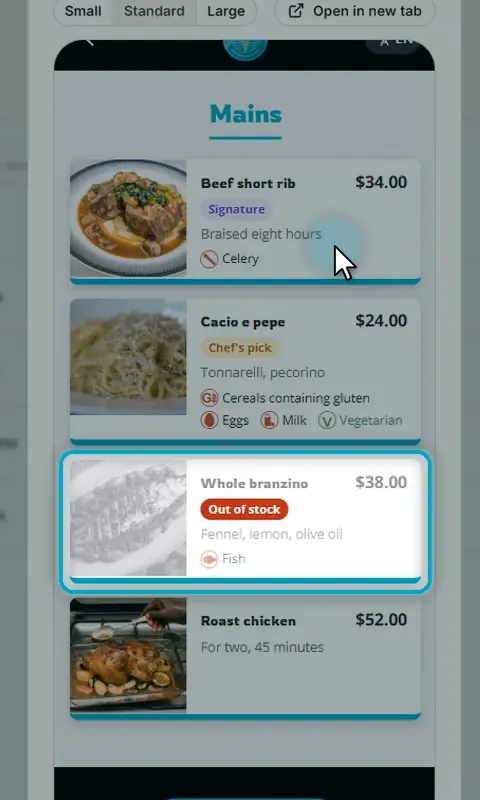
Open Preview to see what guests see: the dish stays on the menu, greyed out and marked Out of stock.
-
When it’s back in stock, switch it on again.
Change a price
-
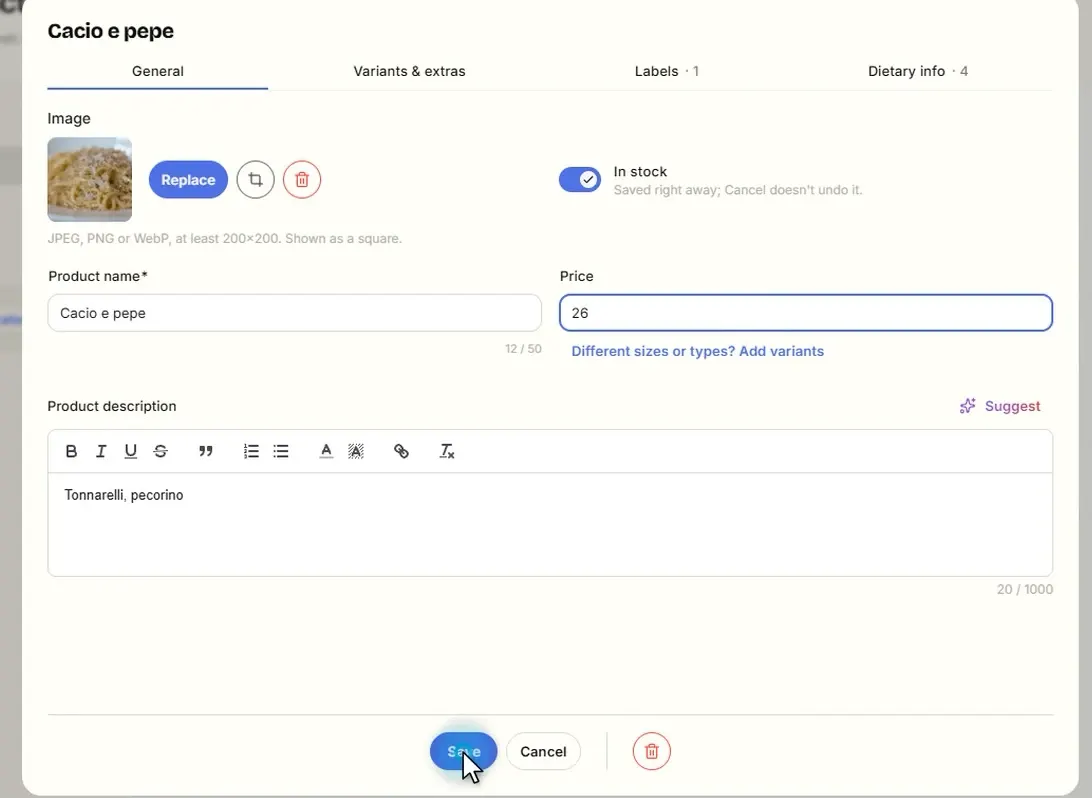
Click the pencil next to the dish.
-
Type the new price and click Save. The new price is on the menu.
Add a special offer for tonight
-
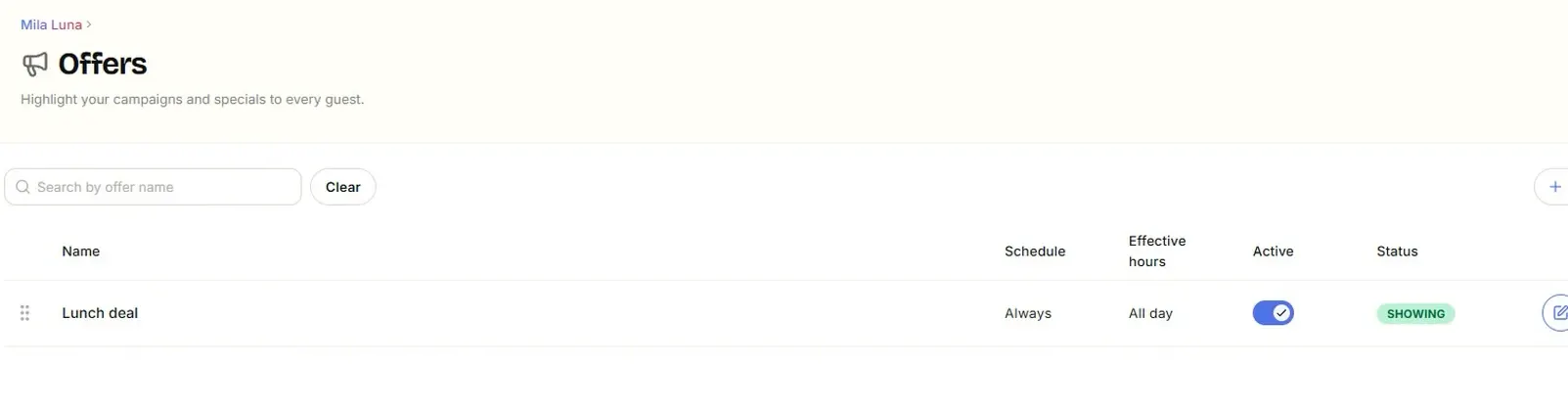
Open Offers and click New offer.
-
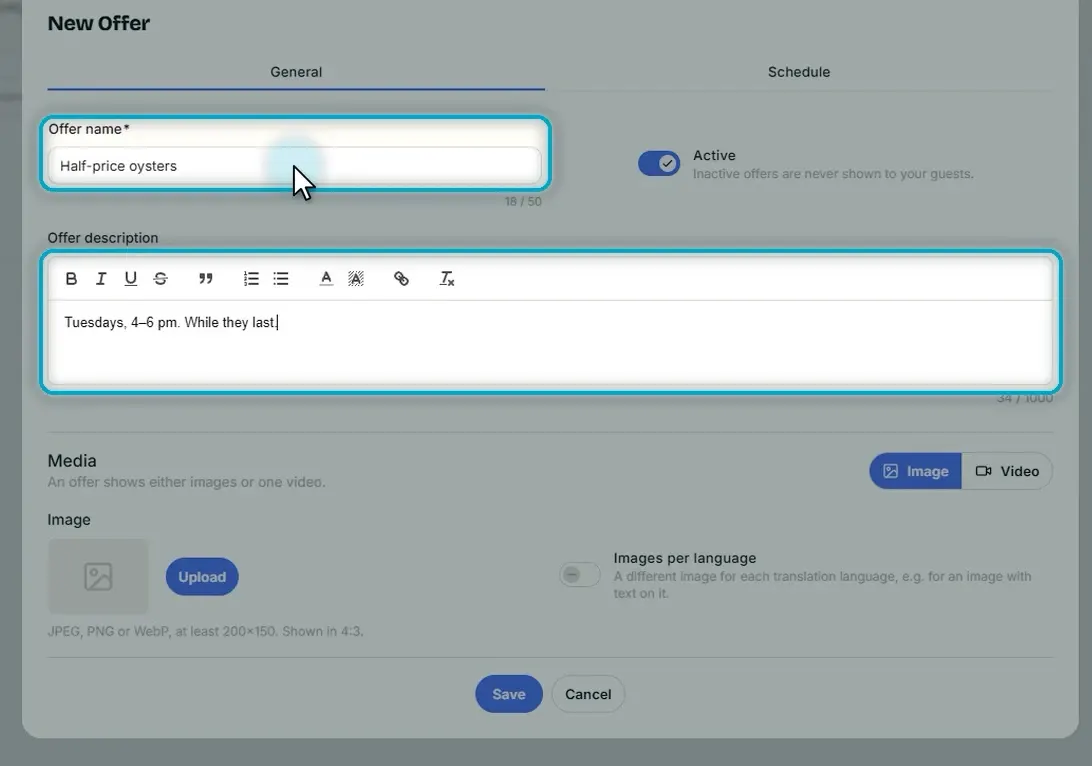
Give it a name and one short line for guests.
-
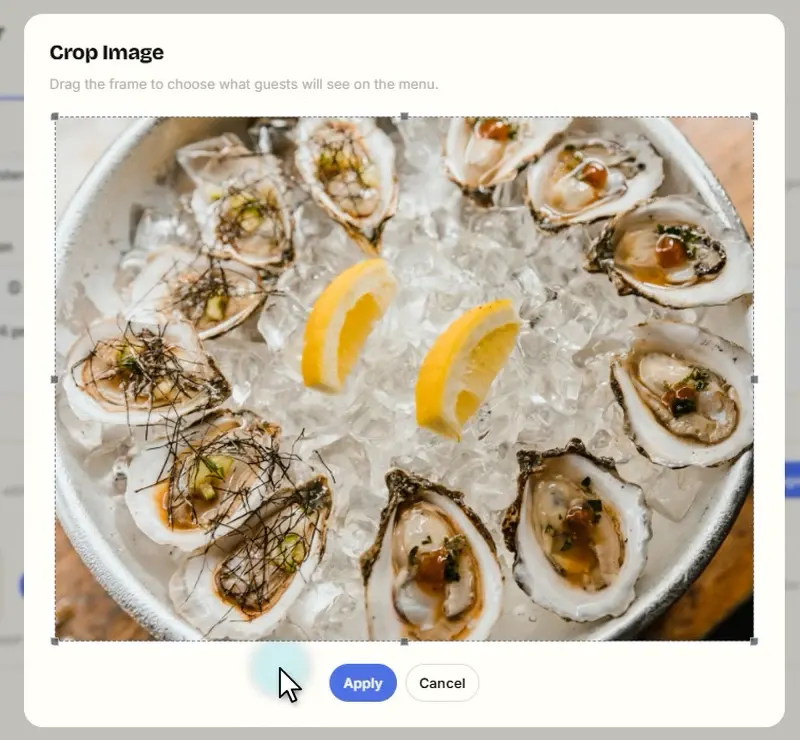
Upload a photo, choose the part guests will see and click Apply.
-
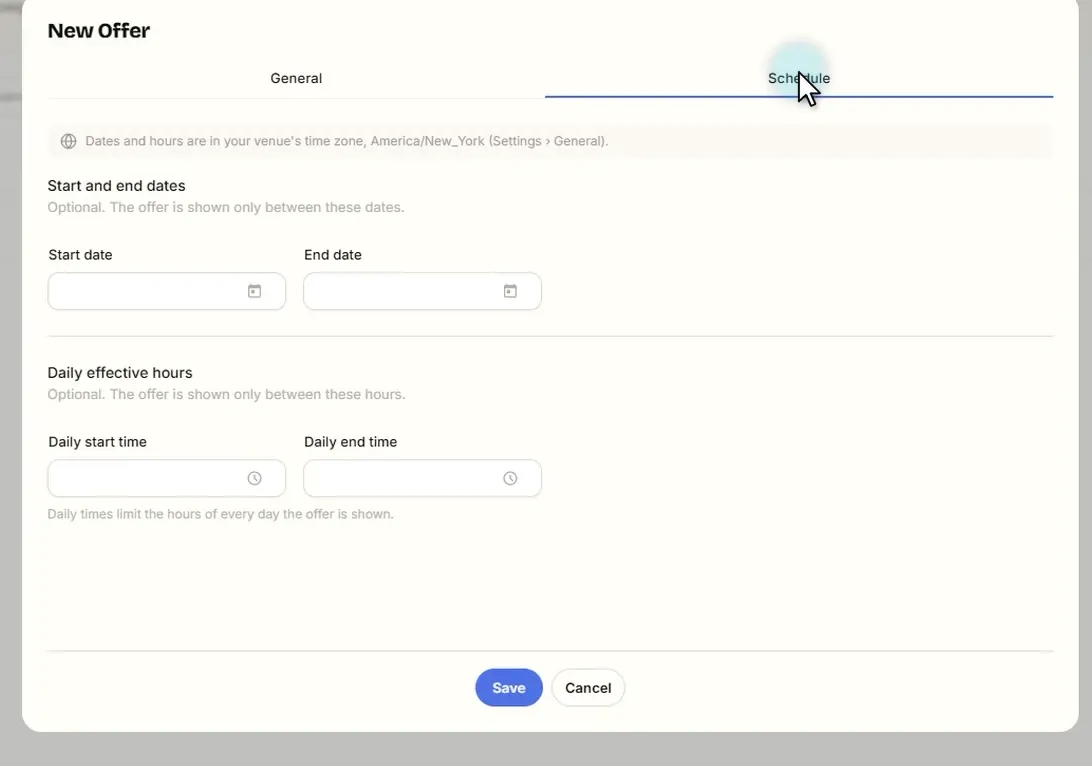
The Schedule tab is optional: set dates or daily hours, and the offer switches on and off by itself. Leave it empty to show it all the time.
-
Click Save. If its status says Showing, guests can see it now.
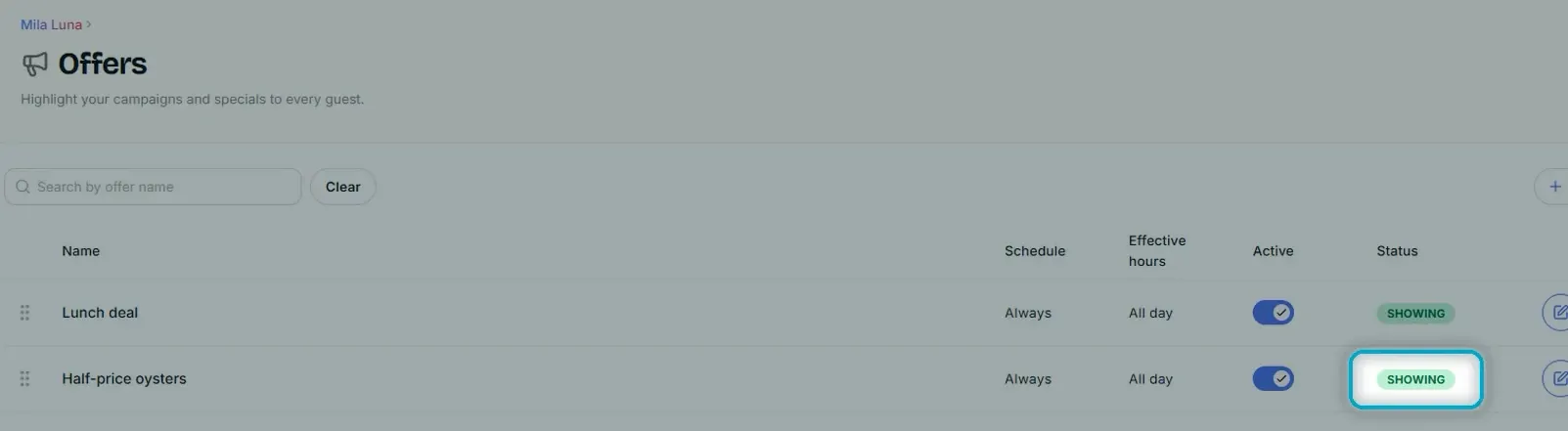
Offers sit at the top of the menu, where every guest sees them. Guests see your changes within about two minutes.